



Paper Cutter Support
Find the help you need
Get started
Repairs and parts
Support
Overview
This page will help with the most common issues we're asked about with our paper cutters. Some of these issues may be the result of shipping damage (if a cutter is dropped at a weird angle some parts can shift), or just the wear and tear of extended use. If the below guides don't help, please feel free to reach out to us by clicking the blue contact button at the bottom of your screen.
Click Here To Download Paper Cutter Manual
Contact UsIf the below info doesn’t help, you may contact us at the following email:
info@hardwarefactorystore.com
Safety Guidelines
- Read the entire manual thoroughly before using the cutter to ensure proper operation.
- Never place your hands below the blade. Always use the provided blade holder when replacing the blade.
- Do not attempt to cut materials other than paper to avoid damage or accidents.
- Keep away from children: Store the cutter with the blade lowered, clamped down, and the handle removed for safety.
Quick Setup
- Remove the cutter from the box and place it on a flat surface.
- Insert the Plastic foot directly into 4 corner bottom of cutter base.
- Reverse the Clamping handle using the included Allen wrench. Refer to the photo for guidance.
- Attach the paper cutting handle by sliding it onto the rod. The handle is designed for easy removal and no need to lock into place.
- Rotate the Clamping handle clockwise to securely tighten the paper. Ensure the paper is firmly clamped to prevent movement during cutting.
- Push the security lock to lower the paper cutting handle.
- Press down the paper cutting handle firmly until the blade touches the blade pad.
- Lift the handle and release Paper clamp plate, it is all set.
Operation
- Raise the Clamp Plate: Turn the clamping handle counterclockwise to lift the clamp plate.
- Raise the Blade: Lift the blade handle to its maximum height. Ensure the rear security lock engages automatically.
- Set the Cutting Length: Adjust the Guide ruler to your desired cutting length. Align the paper squarely against the side and back Guide rulers.
- Clamp the Paper: Turn the clamping handle clockwise to secure the paper tightly. Ensure the paper is firmly clamped to prevent movement during cutting.
- Unlock the Blade: Push the security lock and gently lower the paper cutting handle
- Cut the Paper: Firmly press the cutting handle all the way down until the blade touch the red blade pad
- Retrieve the Paper: Raise the blade handle and clamp plate to retrieve the cut paper
Maintenance
- Check Screws: Periodically inspect all screws of moving parts to ensure they are securely tightened, as screws may loosen during transportation.
- Routine Tightening: After every 200 cutting cycles, check and tighten all screws to maintain stability and performance.
- Lubricate Moving Parts: Apply lubrication to all moving parts regularly to ensure smooth operation.
Replace Cutting Pad
The cutting Pad is the red surface the blade contacts during cutting. Over time, the blade may create a deep groove in the pad, causing issues when cutting the last few sheets of paper. When this happens, the pad needs to be rotated or replace.
Each pad has four sides, and each side can be used twice by flipping it lengthwise. This provides a total of eight uses. Replacement cutting pad are available on our website https://www.hardwarefactorystore.com.
Steps to Replace or Rotate the Cutting Pad:
- Flip the Cutter: Turn the cutter upside down.
- Locate the Screws: Find the two screws securing the cutting stick horizontally.
- Remove the Pad: Loosen the screws and push the cutting pad out through the top of the cutter.
- Rotate or Replace: Rotate to a new side or replace the pad with a new surface under the blade.
- Reattach the pad: Tighten the screws securely, but avoid overtightening to prevent indentations in the Pad.
Replace Blade
The cutting blade is crafted from heat-treated high-carbon steel, designed for repeated use. However, it will eventually dull, especially when cutting heavy paper or cardboard, affecting its cutting accuracy. A dull blade must be sharpened or replaced for optimal performance.
Steps to Remove and Replace the Blade:
- Place the blade holder beneath the blade and lower the blade until it rests securely on the holder.
- Unscrew the screws securing the blade, then raise the blade mechanism, leaving the blade safely on the holder.
- Sharpen or Replace the Blade.
Sharpening: A professional sharpening service can restore the blade's edge. Or Replace the blade purchase from hfsusa.com
Replace Guide Ruler Lock Wheel
If the lock wheel is not tightening properly, the issue is likely due to the bolt attached to the lock wheel being stripped. This is often caused by over-tightening the lock wheel. Note that the lock wheel only needs to be lightly tightened to secure the guide in place. The guide does not hold the paper during cutting; this is the function of the clamp plate.
- Check the end of the channel where the lock wheel slides, and remove the black plastic cap at end of the slide, by remove the screw from the bottom of the cutter
- Slide the lock wheel to the end of the channel where the cap was removed. Unscrew the lock wheel knob completely, allowing the square nut to detach from the bolt.
- Remove the lock wheel from the channel. Replace the lock wheel if needed, or add washers to adjust the position of the bolt and square nut to a non-stripped section.
- Hold the square nut in place at the top of the channel with your finger and screw the lock wheel back into it.
- Securely reattach the channel covering by screwing the cap back in place.
Blade Leveling Instructions
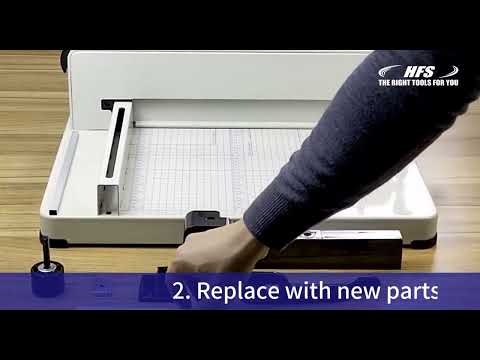
When the blade is fully down, it should be slightly angled lower near the hinge of the cutter. If it isn't, there is a way to adjust it. First try turning the blade pad to a fresh side. It can be rotated 8 ways before it needs to be replaced. On the bottom (underneath) of the cutter there are 2 bolts that go horizontally into the side of the blade pad. Loosen those and push the blade pad out through the top of the cutter. Turn to a fresh side and put it back into place.
However, sometimes even if the cutting stick is replaced, the paper still cannot be cut off either front side or rear side. Here are Adjustment for the Blade leveling.
- Remove the hood screws, two on the bottom of cutter Base and two on top of the Blade cover , to remove the Blade Cover.
- Loosen two of locking nuts.
- Loosen the position nut B to allow for blade adjustment.
- Adjust the position Bolt C to raise or lower the front side of the blade for proper alignment.
- Place a piece of paper beneath the blade for trail cut. Press the cutter handle down; the adjustment block will automatically lift until the blade can cut through paper.
- Tighten the position nut B and locking nut A to hold the blade in place.
- Make sure the blade should touch the cutting stick of handle joint side first, and still be 1/16-1/8 inch above the cutting stick from the opposite side.

Adjust Paper Clamp
- Check whether the two ends of the paper clamp are at the same level.
- If the rear end of the paper clamp is higher, loosen the screw toward the front and turn the clamping handle clockwise so that both the front and rear ends at the same level. Then tighten the screw toward the rear.
- If the front end of the paper clamp is higher, turn the clamping handle counterclockwise to raise the paper clamp, loosen the screw toward the front, and push the front end of the paper clamp down. Then tighten the screw toward the rear and turn the clamping handle clockwise so that both the front and rear ends at the same level.
Replace Lever Arm
- Remove the hood screws and then open the cover.
- Unscrew the nuts and remove the lever arm.
- Replace with a new lever arm and install.
Support / Warranty / Shipping Damage / Replacement Parts
If your cutter arrived damaged, or you have a warranty claim, HFS will take care of all issues. We also have videos available and updated information on design changes and commons questions about the cutter.
The limited-warranty period on our cutters is 1-Year from Date of Purchase. The warranty does not cover blades, feet, knobs, cutting pads, safety pins, or customer negligence. Shipping damage claims must be submitted within one week of received the product. Returns are accepted within 30 days of date of purchase, no exceptions.
Maintenance and Care Instructions
To maintain the cutting performance and extend the service life of the paper cutter, please follow the maintenance instructions below.
1. Blade Rust Prevention
The cutting blade is made of hardened steel and may develop oxidation or rust when exposed to moisture or stored for a long period without use.
Before long-term storage:
- Clean the blade surface with a soft, dry cloth to remove paper dust and residue.
- Apply a thin layer of rust-preventive oil to the blade surface and cutting edge.
- Before use, wipe off all oil from the blade to prevent oil from contacting the paper.
2. Cleaning and Inspection
After use, remove paper scraps and dust from the cutting area and base.
Regularly check the blade, paper clamp, and moving parts to ensure they are secure and operating properly.
3. Blade Replacement
When the blade becomes dull or cutting performance decreases, replace the blade with a suitable replacement part. Do not continue using a damaged or excessively worn blade.
For optimal performance and compatibility, use genuine HFS replacement blades. Replacement blades are available at the following link:
12-Inch Paper Cutter Blade
17-Inch Paper Cutter Blade
4. Storage
Store the paper cutter in a dry and well-ventilated area. Avoid high humidity, direct sunlight, and contact with corrosive substances.
Proper maintenance helps keep the cutter in good working condition and extends its service life.


